
YouTube Brand Account: Owners, Managers and Primary Owner
A YouTube Brand Account lets several people run one channel. Learn the primary owner, owner and manager roles, the 7-day transfer rule and pre-buy checks.
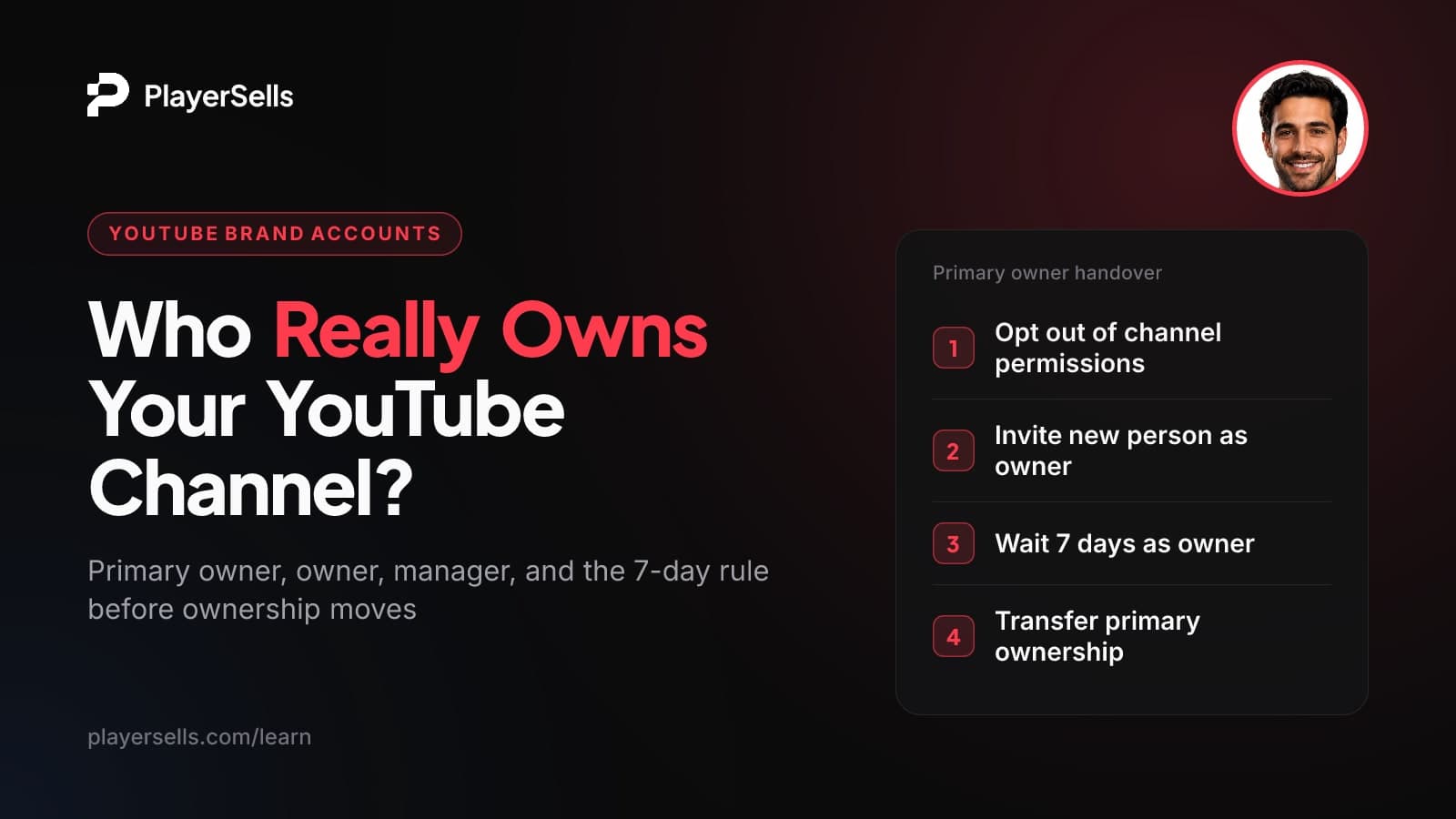
A YouTube Brand Account is a Google account that lets several people manage one channel from their own Google Accounts, with no shared password. It has one required primary owner, plus any number of owners and managers. Primary ownership can only move after the person transferring has been an owner for at least 7 days and the person receiving has been a manager or owner for at least 7 days.
This guide is for creators bringing in a team, agencies managing client channels, and anyone taking over a channel from someone else. It explains the two separate access systems YouTube runs (Brand Accounts and YouTube Studio channel permissions), what each role can do, how the 7-day clocks work, and what to check before you accept a handover. All steps reflect YouTube and Google Help pages as of October 2026, and they are done in a desktop browser.
Key takeaways
- A YouTube Brand Account lets multiple people manage one channel from their own Google Accounts without sharing a username or password.
- Brand Account roles (primary owner, owner, manager) and YouTube Studio channel permissions (Owner, Manager, Editor, Editor (Limited), Subtitle Editor, Viewer) are two different systems that work differently.
- The Owner role in YouTube Studio channel permissions cannot transfer ownership to another user; only Brand Account primary ownership can move.
- To change a channel's primary owner, the channel must be on a Brand Account and opted out of channel permissions, which removes every role set up there.
- Google requires both people in a primary ownership change to qualify: the person transferring must have been an owner for 7+ days, and the person receiving must have been a manager or owner for 7+ days.
- A new owner must wait 7 days as an owner before they can remove other owners or managers, so the previous owner cannot be removed on day one.
What is a YouTube Brand Account?
A Brand Account is a separate Google account that owns the channel, while real people access it through their personal Google Accounts. According to YouTube Help on Brand Account owners and managers, members manage the channel from their own logins, with no separate username or password needed.
That separation is the whole point. If a channel lives directly on someone's personal Google Account, it is tied to that person. If it lives on a Brand Account, ownership is a role that can be handed to someone else.
One historical detail matters for older channels. Since August 4, 2021, new Brand Accounts can only be linked to YouTube channels and carry the label "(limited to YouTube)." Brand Accounts created before that date were not affected, so an older one may still be connected to other Google services. That is worth knowing because deleting a Brand Account removes all of its content across Google services, not just YouTube.
Do you actually need one?
Only if ownership needs to change. YouTube now recommends YouTube Studio channel permissions for giving people access and labels Brand Account roles "not recommended" for that purpose. But if a channel isn't connected to a Brand Account, YouTube says you can change its managers but not its owners. For a solo creator who just wants an editor, channel permissions are enough. For a sale, a business handover or a founder leaving, the Brand Account route is the only one that moves ownership.
Brand Accounts vs channel permissions: what's the difference?
They are two independent permission systems, and a channel uses one or the other for day-to-day access. Brand Account roles are managed in the Brand Accounts section of your Google Account. Channel permissions are managed in YouTube Studio under Settings > Permissions. Most confusion about YouTube ownership comes from mixing up the "Owner" and "Manager" labels, which exist in both systems but mean different things.
| Role | System | What it can do | Can it transfer ownership? |
|---|---|---|---|
| Primary owner | Brand Account | Everything an owner can do; exactly one per account | Yes, to another qualifying owner or manager |
| Owner | Brand Account | Most actions, including controlling who manages the account | Can make someone primary owner after 7 days as owner |
| Manager | Brand Account | Uses Google services that support Brand Accounts, such as posting videos | No, cannot change the primary owner |
| Owner | Channel permissions | Everything, including deleting the channel and managing permissions | No, per YouTube's role table |
| Manager | Channel permissions | Manage permissions, publish and delete content; cannot delete the channel | No |
| Editor | Channel permissions | Upload, publish, manage live streams; cannot delete published content, manage permissions or enter contracts | No |
| Editor (Limited) | Channel permissions | Same as Editor but cannot see revenue data | No |
| Subtitle Editor | Channel permissions | Add, edit, publish and delete subtitles only | No |
| Viewer | Channel permissions | View access (no Brand Account equivalent) | No |
The line people miss is in YouTube's channel permissions role table: the Studio Owner can do everything, including deleting the channel, but cannot transfer ownership to other users. If someone tells you they made you "Owner" in Studio, you have powerful access, not ownership.
Why YouTube still pushes channel permissions
Channel permissions are more granular. Brand Accounts only offer a Manager role for day-to-day access, with no Editor, Editor (Limited) or Viewer options. YouTube's advice is to opt out of channel permissions only if you need to complete a channel transfer.
How do you add a manager to a YouTube channel?
It depends on which system the channel uses. Channels on channel permissions add people in YouTube Studio. Channels using Brand Account roles add people through the Brand Account in Google Account settings.
Method 1: YouTube Studio channel permissions
- Step 1: Sign in at studio.youtube.com with an account that can manage permissions (Owner or Manager).
- Step 2: Go to Settings > Permissions.
- Step 3: Invite the person's Google Account and pick a role: Manager, Editor, Editor (Limited), Subtitle Editor or Viewer.
- Step 4: The person accepts the invite and can then work on YouTube and in YouTube Studio on computer and mobile.
One limitation: per YouTube's migration help page, people invited through channel permissions cannot manage the channel through YouTube APIs. If a tool your team uses relies on API access, check that first.
Method 2: Brand Account roles
- Step 1: As an owner, open the Brand Accounts section of your Google Account and select the account under "Your Brand Accounts."
- Step 2: Click Manage permissions to see the current owners and managers.
- Step 3: Invite the person's Google Account and choose Manager or Owner.
- Step 4: The person accepts the invite. Any 7-day clock for that role starts from here.
Choose the role carefully. Owners control who manages the account, so only give owner access to someone you would trust with the channel itself.
How do you change the primary owner of a YouTube channel?
You make a qualifying owner or manager the primary owner from Manage permissions, but only when both 7-day conditions are met. According to Google Account Help on changing who manages a Brand Account, the person making the change must have been an owner for 7 days or more, and the person becoming primary owner must have been a manager or owner for 7 days or more. If either condition fails, Google shows an error.
Most guides mention a single 7-day wait. Google's own rule has two clocks: one for the person handing over and one for the person receiving. Both must be at 7+ days, or the transfer will not go through.
The handover, step by step
- Step 1: Confirm the channel is on a Brand Account and opted out of channel permissions. If you can't make someone primary owner, YouTube says to check that the channel is opted out of channel permissions.
- Step 2: The current owner invites the new person as an owner.
- Step 3: The new person accepts and waits 7 days.
- Step 4: The new owner goes to the Brand Accounts section of their Google Account, opens the account, clicks Manage permissions, chooses Primary owner next to their name and confirms with Transfer. (Alternatively, the existing primary owner can do it for them, provided they have been an owner for 7+ days.)
- Step 5: Once the new primary owner has been an owner for 7 days, they can remove the previous owner and any other owners or managers.
What the timeline looks like
| When | What happens | What the new person can do |
|---|---|---|
| Day 0 | Current owner (7+ days as owner) invites the new person as owner; invite accepted | Use the channel as an owner; cannot become primary owner or remove anyone yet |
| Days 1-6 | Both clocks running | Same as above; attempts to transfer show an error |
| Day 7+ | New person qualifies as receiver and as an owner of 7 days | Become primary owner; remove the old owner and other managers |
| After transfer | Old primary owner no longer holds the primary role but keeps access until removed | Full control, including who manages the account |
Two practical traps. First, invite the new person as an owner, not a manager. A manager of 7 days can receive primary ownership, but the rule for removing people counts time as an owner, so they could face another week before cleaning up access. Second, if the current owner only recently became an owner themselves, the transfer will fail until their own 7 days are up.
Also note that a primary owner who wants to leave must first make someone else the primary owner. YouTube recommends keeping at least one other owner besides the primary owner, so a single lost login doesn't strand the channel.
How do you move a YouTube channel to a Brand Account?
You use YouTube's channel move tool, after making sure the channel is opted out of channel permissions. Per YouTube's guide to moving a channel between Brand Accounts, the move starts in YouTube Settings > Advanced settings > "Move channel to your Google Account or to a different brand account."
The conditions, as of October 2026:
- Same Google Account: a channel can only move between accounts associated with the same Google Account.
- No supervised accounts: supervised accounts cannot move channels.
- Channel permissions cleared: the channel must be opted out of channel permissions with no other users added through that system.
The serious risk is the destination. If the Brand Account you move into already has a channel, that existing channel is replaced and deleted. YouTube itself warns you can accidentally delete the wrong channel, so read every confirmation screen and double-check which channel is labeled for deletion before you click.
YouTube's move page also has a section on what doesn't carry over in a move. Read that list on the live page before starting, because it can change. For what survives a full sale (AdSense, monetization status and more), see our guide on buying or selling a YouTube channel and what survives the handover.
What opting out of channel permissions resets
Opting out happens in YouTube Studio under Settings > Permissions, and it removes every role set up there. Your editors and managers lose access until you re-invite them. Going the other way is also manual: only the Brand Account's primary owner can opt a channel into channel permissions (Settings > Permissions > Move Permissions), and while existing Brand Account users are copied over, the owner has to set each person's access level and send each invite again.
Plan a short window for this. Tell your team before opting out, finish the transfer, then rebuild access deliberately rather than restoring everyone by habit.
How to check a channel is on a Brand Account before you take it over
The reliable check is in the Brand Accounts section of a Google Account, not on the public channel page. Once you accept an invite, the channel's Brand Account should appear under "Your Brand Accounts" in your own Google Account, and Manage permissions shows every owner and manager. Before that point, ask the current owner to share their screen of the same page.
If you are taking over a channel from someone else, note that YouTube does not present Brand Accounts as a way to sell channels. Read YouTube's Terms of Service for your situation. Then work through this checklist:
| Check | Why it matters | What good looks like |
|---|---|---|
| Channel is on a Brand Account | Personal-account channels can't change owners | Account listed under "Your Brand Accounts" with Manage permissions available |
| Opted out of channel permissions | Primary ownership can't move otherwise | No users added through Studio Settings > Permissions |
| You were invited as owner | Managers can't remove people and can't change the primary owner | Your name shows the Owner role |
| Seller's owner clock | Transfer fails if the seller has under 7 days as owner | Seller has been an owner well over 7 days |
| Your 7-day date | Sets the earliest transfer and cleanup date | Date written down from when you accepted |
| Other owners and managers | Leftover owners keep control over who manages the account | Full list reviewed; removal planned for day 7+ |
Leftover owner access is one of the biggest risks in a channel handover. Someone who stays an owner keeps control over who manages the account. Our article on account recovery scams where the seller takes the account back covers how these situations play out and what evidence to keep.
After the handover: clean up in order
Once you are primary owner and have 7 days as an owner, remove the previous owner, then any managers you don't recognize. Add a second owner you control, as YouTube recommends. If the channel is monetized, review payment details and the requirements in our YouTube monetization after a sale guide. You can switch back to channel permissions later for finer roles, remembering that everyone must be re-invited.
Taking over a YouTube channel safely on PlayerSells
The 7-day rule creates a gap: the buyer may have paid before they can become primary owner or remove the seller. Escrow is built for that gap. On PlayerSells, the buyer pays PlayerSells, the money is held, and the seller is paid only after the buyer confirms the channel was delivered as described.
Every deal follows a fixed sequence (offer sent, accepted, payment pending, paid, delivered, buyer confirmed, completed), so a sensible buyer confirms only after they hold primary ownership and the seller's access is gone. Either side can open a dispute before completion; a human moderator reviews it, and the money stays held while it is open. Every listing is reviewed by a person before it goes live.
You can browse YouTube channels for sale or aged YouTube channels, estimate a fair price with the YouTube channel value tool, and see fees on the pricing page.
Frequently asked questions
How do I know if my YouTube channel is a Brand Account?
Check the Brand Accounts section of your Google Account. If the channel's account appears under "Your Brand Accounts" and you can open Manage permissions for it, the channel is on a Brand Account. If it doesn't appear there, the channel likely sits on your personal Google Account and would need to be moved before ownership could change.
What can a manager do on a YouTube Brand Account?
A manager can use Google services that support Brand Accounts, such as posting videos on YouTube. A manager cannot change the primary owner and does not control who manages the account; that power belongs to owners. A manager of 7+ days can, however, be made primary owner by a qualifying owner.
Can an Owner in YouTube Studio transfer the channel to someone else?
No. YouTube's channel permissions role table states the Studio Owner cannot transfer ownership to other users. Ownership moves only through Brand Account primary ownership, after the channel is opted out of channel permissions.
Why do I have to wait 7 days to become primary owner?
Because Google makes it a fixed condition: the receiver must have been a manager or owner for 7+ days, and the person transferring must have been an owner for 7+ days. The help pages state the rule without offering a way around it. In practice, it means no one can grab primary ownership the same day they are added.
Will I lose subscribers or videos if I move my channel to a Brand Account?
University IT guides describing this process report that subscribers and videos are kept, but YouTube's own move page includes a list of things that don't transfer, so read it on the live page first. The biggest avoidable loss is moving into a Brand Account that already has a channel, because that existing channel gets deleted.
Can a supervised account move a YouTube channel?
No. YouTube says supervised accounts cannot move channels between accounts. The person managing the move needs a regular Google Account associated with both the source and destination.
Can I remove the old owner right after becoming primary owner?
Only once you have been an owner for 7 days. If you were invited as an owner and waited 7 days before taking primary ownership, you can usually remove the old owner straight away. If you started as a manager, your owner clock may still be running.
Bottom line
If you only need help running a channel, stay on YouTube Studio channel permissions and pick the narrowest role that works. If ownership needs to change, the channel must be on a Brand Account, opted out of channel permissions, and both people must clear their 7-day clocks before primary ownership moves.
If you're taking over a channel, write down your 7-day date, accept only an owner invite, and don't release payment until you are primary owner with the old access removed. For the full picture of a channel handover, read our guide on how to buy or sell a YouTube channel.
Free tools for this topic

Published by the PlayerSells editorial team. Data comes from PlayerSells marketplace records and our own crawlers. About PlayerSells · Editorial policy
Related Articles
Continue learning with these related guides.
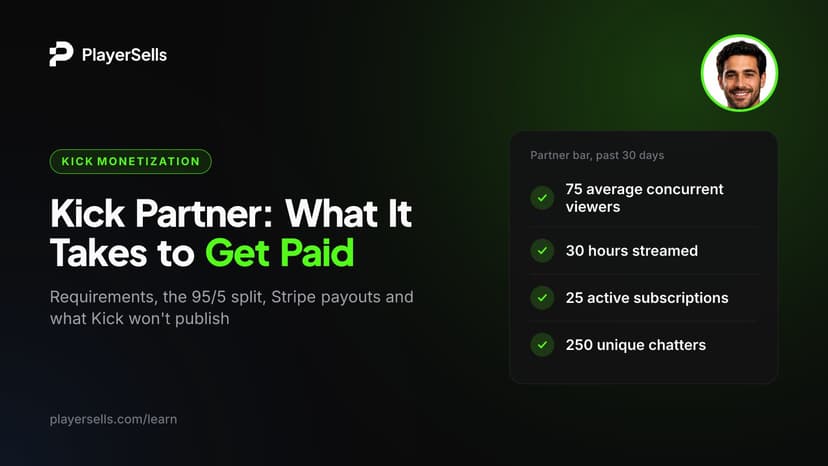
Kick Creator Incentive Program: Requirements, Pay, Payouts
Kick Creator Incentive Program requirements as of 2026: 75 CCV, 30 hours, 25 subs, plus verification, the 95/5 split and how Stripe payouts arrive.
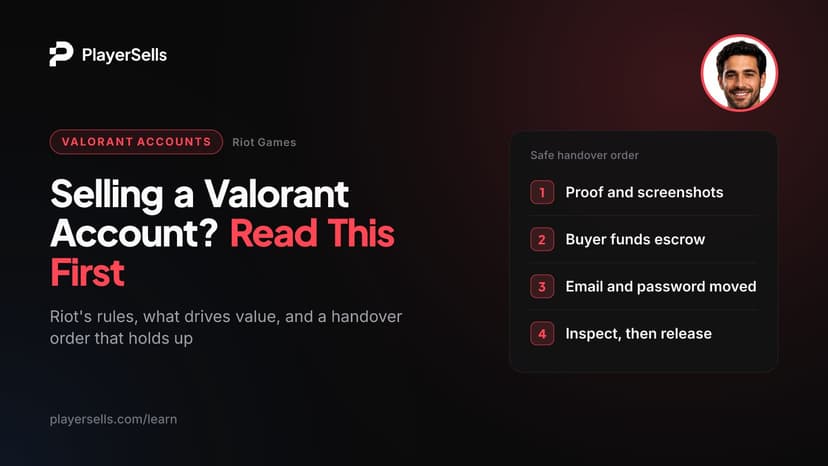
How to Sell a Valorant Account: Riot Rules, Value, Handover
Selling a Valorant account breaks Riot's ToS and risks a ban. Learn what drives value, the proof buyers want, and a handover order that limits recovery risk.
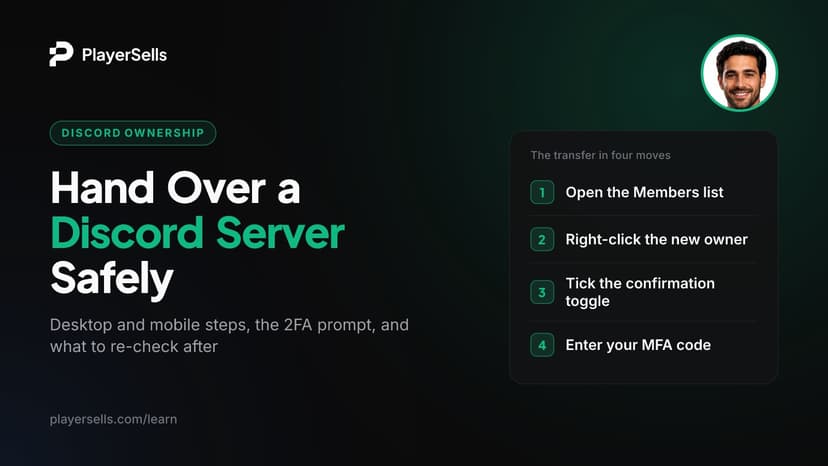
How to Transfer Discord Server Ownership Safely
Transfer Discord server ownership on desktop or mobile: the 2FA prompt, what to check after, Server Subscription payouts, and whether selling is allowed.