
How to Change a YouTube Channel Name and Handle Safely
Change your YouTube channel name and @handle in Studio: the twice-per-14-days limit, badge loss, old link expiry and a rebrand checklist for new owners.
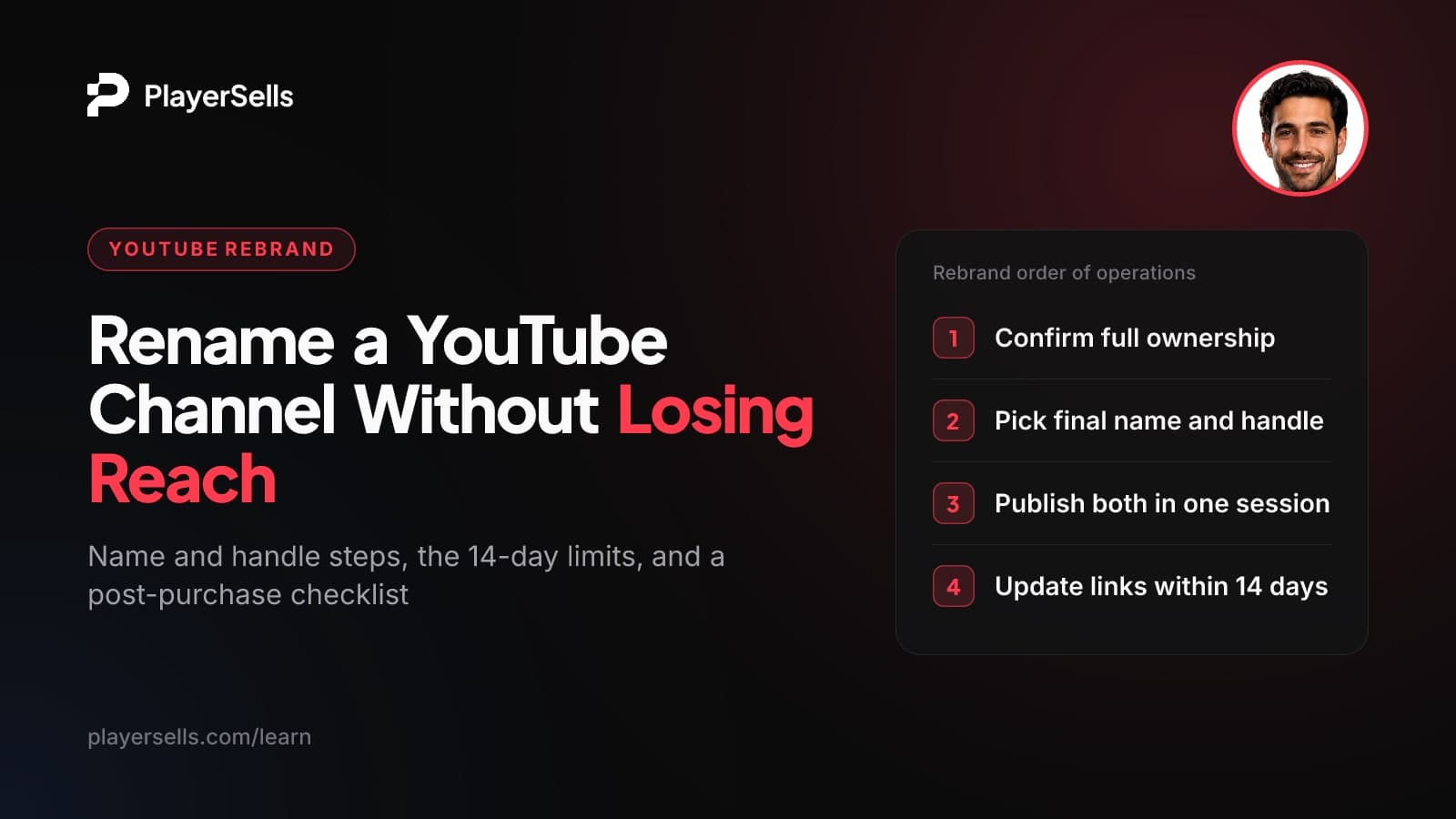
To change your YouTube channel name, open YouTube Studio, go to Customization > Profile, type the new name and click Publish. You can rename twice in any 14-day period, and the new name can take a few days to show everywhere. Your @handle is edited on the same page with the same twice-per-14-days limit. Renaming removes the verification badge.
This guide is for creators planning a rebrand, and especially for anyone who has just taken over an established channel and wants to make it their own without breaking links or wasting changes. It covers the desktop and Android steps, the change limits, what happens to the badge and old @handle links, what YouTube says (and doesn't say) about monetization, and a day-by-day rebrand checklist. Rules and menu paths are current as of October 2026.
Key takeaways
- YouTube lets you change a channel name twice within a 14-day period, and the same twice-per-14-days limit applies to handles.
- YouTube's help pages say changing your channel name will remove your verification badge, while they don't list handle changes as a cause.
- After a handle change, YouTube holds the old handle for 14 days with both URLs working, and then anyone can claim it.
- Renaming your YouTube channel does not change your Google Account name, because the two are managed separately.
- YouTube's help pages on names and handles don't list any effect on monetization or subscribers, but the new name still has to follow the Community Guidelines.
- If a rename won't save, delete any channel name translations first and then try again.
What exactly are you changing: name, handle or URL?
A YouTube channel has three identifiers, and they behave differently. Knowing which one you're touching tells you what can break.
- Channel name: the display name shown on your channel page and next to your videos. It only appears on YouTube. Your Google Account name is changed separately and is not affected.
- Handle: the unique @name. When YouTube announced handles in 2022, it said every channel would eventually get one, shown on channel pages and Shorts and usable for mentions in comments, community posts and video descriptions.
- Channel URL: youtube.com/@yourhandle. Custom URLs are a legacy feature. According to 2023 reporting from gHacks, new custom URLs can't be created or changed, and old channel URLs, including custom URLs, redirect to the channel's handle URL.
In practice, the name is about how viewers recognize you, and the handle is about where links and mentions point. A rebrand usually touches both, and the handle is the one with real link consequences.
How do you change your YouTube channel name?
The quickest route is YouTube Studio on a computer. These are the current steps from YouTube Help's profile management page, accessed October 2026.
On desktop (YouTube Studio)
- Step 1: Sign in to YouTube Studio with the account that owns the channel.
- Step 2: In the left menu, choose Customization, then Profile.
- Step 3: Enter the new channel name.
- Step 4: Click Publish.
Many older guides still send you to a "Basic info" tab. YouTube Help now says Customization > Profile, so if a tutorial mentions Basic info, it's out of date.
In the YouTube app on Android
- Step 1: Open the YouTube app and tap your profile picture.
- Step 2: Tap View channel.
- Step 3: Tap Edit next to your name.
- Step 4: Enter the new name and tap Save.
Menu labels shift between app versions, and we haven't verified the current iPhone flow for this guide. If your app looks different, use YouTube Studio in a desktop browser, where the path above is the documented one.
What if the new name won't save?
One fix most guides skip: YouTube says to delete any channel name translations first, then try the rename again. If you or a previous owner added translated versions of the channel name, they can block the update.
Also remember that the new name may take a few days to show across YouTube. Check whether it saved in Studio before you re-enter it, so you don't spend your second change on a name you already set.
How do you change your YouTube handle?
You edit the handle on the same Studio page as the name. Per YouTube Help, accessed October 2026:
- Step 1: Sign in to YouTube Studio.
- Step 2: Choose Customization, then Profile.
- Step 3: Find the Handle section and edit your handle.
- Step 4: Click Publish to confirm.
YouTube's handle help page also has separate app instructions. If you're doing a full rebrand, desktop Studio is easier because the name, handle and profile picture all sit in one place.
What if the handle you want is taken?
YouTube will suggest a similar available handle. You can also try adding periods, numbers or underscores. If it's still unavailable, according to YouTube's handle help page, another channel is usually using it or it doesn't meet the handle naming guidelines.
The 2023 gHacks coverage reported the format rules as 3-30 characters, using letters and numbers plus underscores, hyphens and periods, and the handle must not look like a URL or a phone number. Check YouTube's own handle guidelines if you're close to any of those limits.
How often can you change your name and handle, and how long do changes take?
Both the channel name and the handle can be changed twice within a 14-day period. Some guides say "once every 14 days." That's wrong: YouTube Help says twice, and TeamYouTube repeated the same rule on X in September 2025.
| What you change | Limit (as of October 2026) | How long it takes | Side effects |
|---|---|---|---|
| Channel name | Twice within 14 days | May take a few days to show across YouTube | Removes the verification badge |
| Handle | Twice within 14 days | Old and new handle URLs both work for 14 days | Old handle released to other users after 14 days |
| Profile picture | No limit given on the help pages | May take a few minutes | None listed |
| Banner | No limit given on the help pages | Not stated | Same banner on computer, mobile and TV, but displayed differently on each |
Treat the second change as a safety net, not a plan. If you use both on day one and spot a typo, you wait out the window with the mistake on display.
What happens to your verification badge and your old links?
The verification badge
YouTube Help says changing your channel name will remove your verification badge. It doesn't say "might," and it doesn't list exceptions. YouTube's help pages don't list handle changes as a cause of badge loss, though they only describe the name change case directly.
Don't count on the badge coming back on its own. When YouTube separated channel names from Google Account names in 2021, coverage citing 9to5Google reported that a renamed verified channel loses its checkmark and the owner must reapply. Treat reapplying as the usual path, not a guaranteed outcome.
If the badge matters to your audience or sponsors, decide before you rename. Ask whether a handle change alone, plus new artwork, would get you most of the rebrand.
Old @handle links and custom URLs
The link chain has two parts. Legacy custom URLs redirect to your current handle URL, according to the 2023 gHacks report, so those should follow you through a rebrand. Your previous @handle is different: it only keeps working for the 14-day hold.
After 14 days, your old @handle can be registered by anyone. Every link or mention that still uses it could then send viewers to a stranger's channel, including an impersonator. Update every external link inside the 14-day window.
Places to check: video descriptions, pinned comments, channel links, community posts, other social media bios, link-in-bio pages, sponsor media kits, email signatures, and any website that embeds your channel URL. Old mentions of your handle in comments and posts are worth searching too.
One more detail: there is no setting to hide only the handle. The only way to hide it is to hide or delete the channel.
Does changing your channel name affect monetization or subscribers?
YouTube's help pages on changing names and handles don't list any effect on monetization, Partner Program status, earnings or subscriber counts. We couldn't find a YouTube page saying a rename is either safe or risky for monetization, so be wary of any guide that states it as fact.
What is clear: the new name still has to follow YouTube's Community Guidelines, and the badge goes away when the name changes. If you want to confirm where the channel stands on monetization before and after a rebrand, check the current rules in our guide to YouTube monetization requirements and what happens after a sale, or run the channel through the free YouTube monetization checker.
The practical reach risk is recognition. Viewers who know the old name may scroll past a new one, and people searching the old name may not find you right away while it updates. Creators on forums commonly suggest a short video or community post explaining the change, mentioning both the old and new handle.
Rebrand checklist for a channel you just bought
If you've just taken over a channel, finish the handover before you touch the branding. YouTube does not endorse channel sales, and its terms and Google's account rules govern how access can change hands, so read them yourself. Ownership, access and AdSense are covered in our guide on how to buy or sell a YouTube channel and what survives the handover. This checklist starts after that work is done.
- Step 1: Confirm you have full, stable control of the channel and its Studio access. A rebrand on a channel you don't fully control is wasted work.
- Step 2: Record the "before" state. Screenshot the current name, handle, badge status, channel links and a list of where the old handle appears in descriptions and pinned comments.
- Step 3: Choose the final name and handle. Check the handle is available and fits the format rules, and spell-check both. You only get two changes of each per 14 days.
- Step 4: Decide on the badge. If the channel is verified, renaming removes it, and reapplying is not guaranteed.
- Step 5: Prepare the profile picture and banner. The banner is shared across computer, mobile and TV but displays differently on each device, so preview it on all three.
- Step 6: Publish the name, handle and profile picture in one session under Customization > Profile, so viewers see a single, clean change.
- Step 7: Announce the rebrand with a short video or community post that names the old and new handle.
- Step 8: Update every link to the old @handle before the 14-day hold ends.
- Step 9: After day 14, search for the old handle and watch for anyone using it to impersonate the channel.
Day-by-day rebrand timeline
| When | What YouTube does | What you do |
|---|---|---|
| Day 0 | Saves the new name, handle and picture | Publish everything in one Studio session and post the announcement |
| Minutes later | Profile picture updates across YouTube | Check it on desktop and phone |
| First few days | New name spreads across YouTube | Don't re-edit just because it's slow; confirm in Studio first |
| Days 1-13 | Old and new handle URLs both work | Update descriptions, pinned comments, bios, media kits and websites |
| Day 14 onward | Old handle is released to other users | Search for the old handle and watch for impersonation |
Buying or selling a YouTube channel on PlayerSells
If you're still at the buying stage, the rebrand is the last step, not the first. On PlayerSells, YouTube channels are listed in YouTube channels for sale and aged YouTube channels, and every listing is reviewed by a person before it goes live.
Payment runs through escrow: you pay PlayerSells, the money is held, and the seller is paid only after you confirm the channel was delivered as described. Every deal follows the same sequence (offer sent, accepted, payment pending, paid, delivered, buyer confirmed, completed), and either side can open a dispute before completion. A human moderator reviews disputes and the money stays held while one is open.
That's a good reason to keep the channel exactly as described until you've verified access and confirmed delivery, then rebrand. Sellers can estimate a fair asking price with the free YouTube channel value tool, and fees are listed on the pricing page.
Frequently asked questions
Does changing my YouTube handle remove the verification badge?
Not according to YouTube's help pages: they say a channel name change removes the badge, but they don't list handle changes as a cause. At least one third-party guide says a handle change leaves the badge in place, though YouTube doesn't state that directly. If the badge is important, check it right after any change.
Can I change my YouTube handle again before the 14 days are up?
Yes, once more. You can change your handle twice within a 14-day period, and YouTube holds your previous handle for those 14 days in case you want to switch back. After a second change, you have to wait for the window to pass.
Does changing my channel name change my Google Account name?
No. A new channel name and picture only show on YouTube, and your Google Account name is changed separately. Renaming the channel doesn't change the name on your Google Account.
How long before my old YouTube handle becomes available to everyone?
14 days. During that hold, both the old and new handle URLs work. After it ends, other users can claim the old handle, so any links still using it may point somewhere you don't control.
Is it possible to lose your YouTube verification badge?
Yes. Changing your channel name removes it, according to YouTube Help. Getting it back usually means reapplying, and there's no guarantee it will be restored.
Can I hide my YouTube handle without hiding my channel?
No. YouTube has no separate setting to hide only the handle. The only way to hide it is to hide or delete the whole channel.
Bottom line: plan once, publish once
Pick the final name and handle before you open Studio, decide whether losing the badge is acceptable, and publish everything in one session. Then spend the 14-day hold updating every link to the old @handle, because after that it belongs to whoever claims it.
If you're rebranding a channel you've just bought, confirm ownership and payments first. Our guide to transferring a YouTube channel and AdSense covers that part.
Free tools for this topic

Published by the PlayerSells editorial team. Data comes from PlayerSells marketplace records and our own crawlers. About PlayerSells · Editorial policy
Related Articles
Continue learning with these related guides.
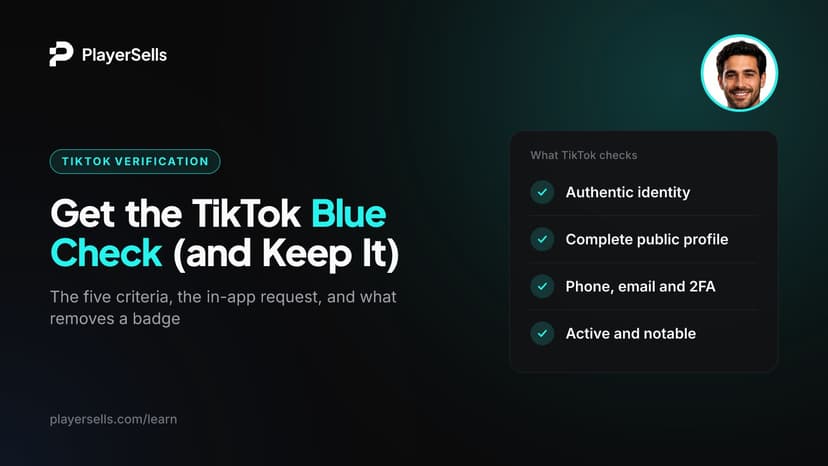
How to Get Verified on TikTok: Requirements and Removal
TikTok verifies notable accounts that are authentic, complete, secure and active. See the in-app steps, why followers don't count, and what removes a badge.
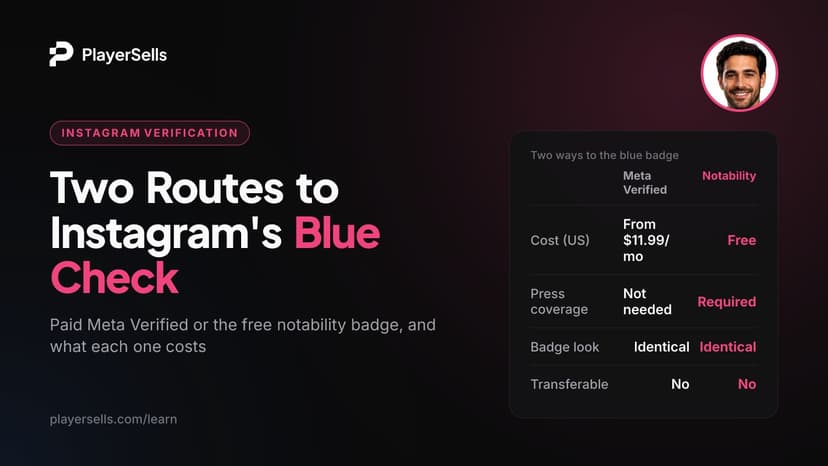
How to Get Verified on Instagram: Meta Verified vs Notability
Two routes to Instagram's blue check: pay for Meta Verified (about $11.99-$14.99/month in the US) or request the free notability badge. Rules, ID and costs.
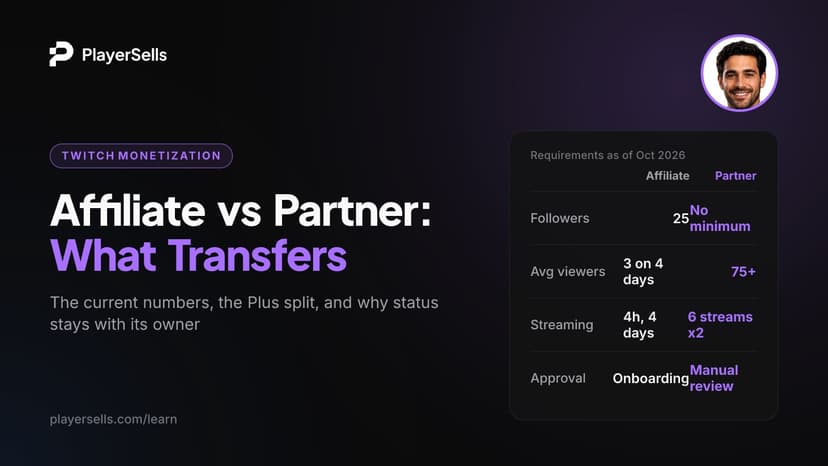
Twitch Affiliate Requirements vs Partner, and Transfers
Twitch Affiliate requirements are 25 followers, 4 hours, 4 days and 3 average viewers. Partner rules, payouts and why status won't transfer to a buyer.