
How to Change Instagram Email and Phone on a Bought Account
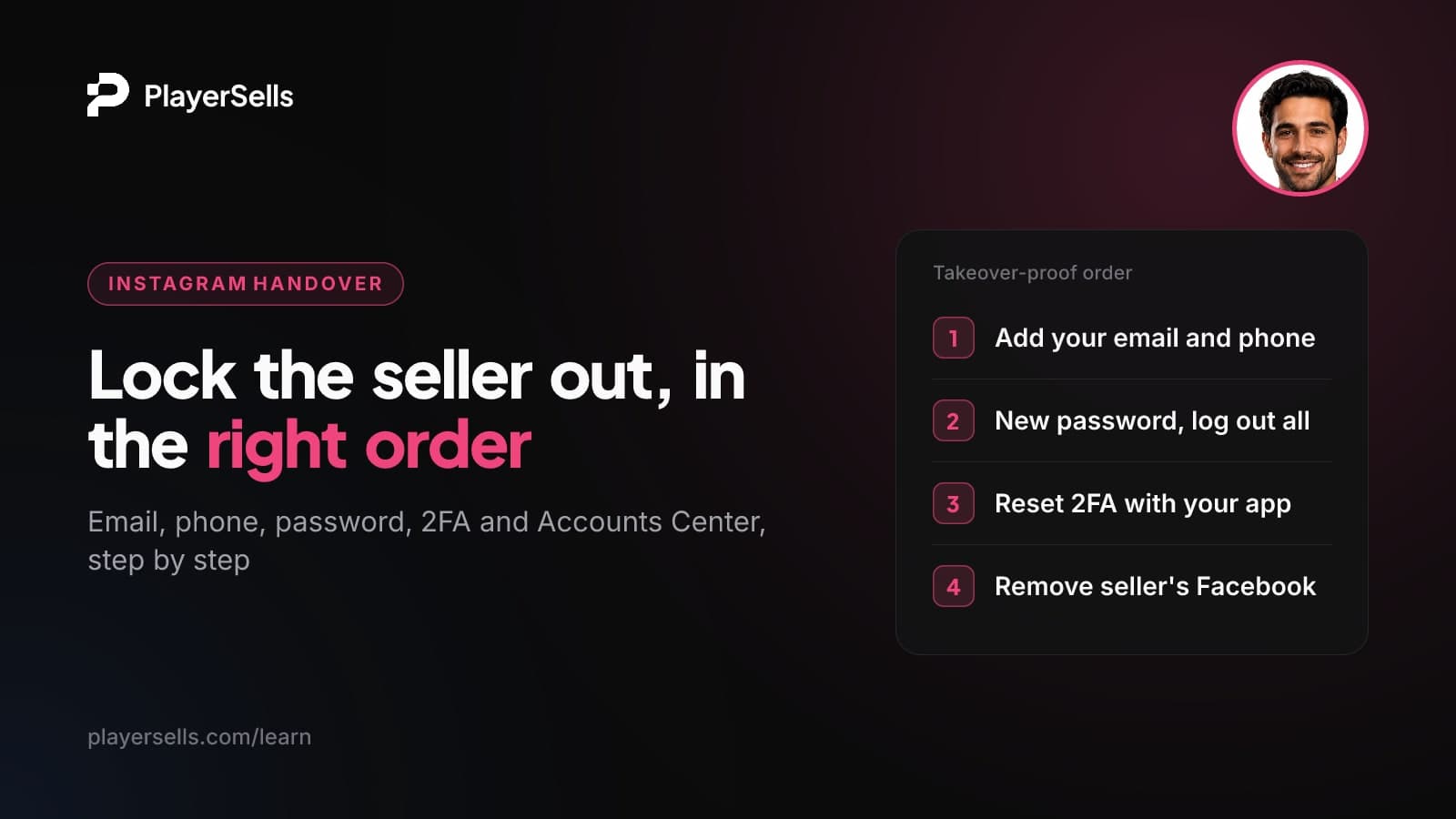
How to change Instagram email, phone, password and 2FA after buying an account, in the order that stops the old owner from using recovery to get back in.
To change your Instagram email, open Settings, go to Accounts Center, then Personal details > Contact info > Add new contact > Add email, and enter the code Instagram sends. You change your phone number on the same screen. After buying an account, add your own contact info first. Then change the password, reset 2FA, and remove the seller's linked accounts and devices.
This guide is for anyone who has just received an Instagram account from someone else and wants to be sure the previous owner cannot use password recovery, old login sessions, a linked Facebook profile or their own authenticator app to get back in. It gives the menu paths most people see as of October 2026 (labels can differ), the order to do them in, a troubleshooting section and a final checklist.
Key takeaways
- On Instagram, the email and phone number live under Accounts Center > Personal details > Contact info, and you should verify your new contact details before removing the old ones.
- The phone number used for two-factor authentication is set separately under Password and security > Two-factor authentication, so updating your contact info alone can leave login codes going to the previous owner.
- When you change the password, tick "Log out of all devices" before saving, then check Where you're logged in to confirm no other sessions remain.
- Instagram's help center says accounts in the same Accounts Center may be able to log into each other, which is why a seller's linked Facebook profile must be removed.
- Do every step in one sitting, in order, before you confirm the deal, because each step you skip is a door the previous owner can still use.
- Instagram's Terms of Use prohibit buying, selling or transferring accounts, and securing the account does not change that risk.
How do you change your Instagram email and phone number?
You change both in Accounts Center, on the Contact info screen. Older guides point to Edit Profile > Personal information, but current versions of the app route contact details through Accounts Center. Instagram also says it is gradually moving people to Meta Accounts, so you may see Meta Account settings instead of Accounts Center. The steps below use the labels most people see as of October 2026. Expect small wording differences.
- Step 1: Open Settings. In the app, go to your profile and open the menu. On desktop, click More > Settings > See more in Accounts Center.
- Step 2: Open Accounts Center (or Meta Account settings) > Personal details > Contact info.
- Step 3: Tap Add new contact, then Add email (or the matching option for a phone number).
- Step 4: Enter the confirmation code sent to the new address or number.
- Step 5: Once the new contact shows as confirmed, remove the old one from the same Contact info screen if it is still listed.
Tech sites that tested this flow, such as Beebom, report that the new email replaces the old one and that you do not need access to the old inbox to add it. Treat that as typical behavior, not a promise. Instagram may notify the previous contact details about the change, which is one more reason to work fast.
One thing almost every quick guide misses: the 2FA phone number is separate. It sits under Password and security > Two-factor authentication > SMS (or WhatsApp). If you only update Contact info, login codes can keep going to the seller's phone.
Before you start: Instagram's rules and what you need from the seller
Instagram's Terms of Use prohibit buying, selling or transferring any aspect of an account, including the username. Following this guide makes the account harder for the previous owner to take back. It does not make the purchase compliant, and it cannot stop Instagram from restricting or disabling the account. Go in with that risk priced in.
For a clean handover, have these ready before you touch any setting:
- The seller online at the same time as you. You may need a code from their email, phone or authenticator app in the first few minutes.
- The current password and confirmation that you can log in.
- A plan for 2FA. Either the seller turns their 2FA off before handover, or they stay available to read you codes until you replace it.
- The original email, if it was part of the deal. Controlling the inbox the account was created with is the strongest position a buyer can be in.
- Your own email, phone and authenticator app, set up on the phone you will keep using. An authenticator can only be enrolled from the Instagram app on Android or iPhone.
Why does the order of changes matter?
The order matters because each change only helps if the seller cannot undo it through a door you have not closed yet. Change the password while their email is still on the account, and they can simply request a reset link. Password reset links go to the email or phone you choose from the contact methods on file, so whoever controls those contacts controls the account.
Here is every common way back in and the step that closes it.
| Way the previous owner could get back in | Where it lives | What closes it |
|---|---|---|
| Password reset link to their email or phone | Accounts Center > Personal details > Contact info | Add and verify your contacts, then remove theirs (Steps 1-2) |
| Knowing the current password | Password and security > Change password | New password (Step 3) |
| A session still logged in on their phone or browser | Password and security > Where you're logged in | "Log out of all devices," then a manual check (Steps 3 and 6) |
| 2FA codes going to their phone or authenticator app | Password and security > Two-factor authentication | Remove their method, enroll your own (Step 4) |
| Their Facebook or Meta account in the same Accounts Center | Accounts Center > Accounts (or Manage accounts) | Remove their account (Step 5) |
| A saved login profile on a shared device | Instagram login screen > Options | Remove profiles from this device (Step 6) |
Two principles drive the sequence. First, add before you remove, so there is never a moment when the account has no working recovery method. Second, close recovery before you change the password, because a new password means nothing if the seller can reset it.
Never confirm a purchase until every row in this table is closed. A handover that is almost done still leaves the seller one recovery email away from taking the account back.
The handover order, step by step
Run all seven steps in one session, with the seller available to send any codes you need.
- Step 1: Add and verify your own email in Accounts Center.
- Step 2: Add and verify your phone number, then remove the seller's email and phone.
- Step 3: Change the password and tick "Log out of all devices."
- Step 4: Reset two-factor authentication with your own authenticator app.
- Step 5: Remove the seller's Facebook or other accounts from Accounts Center.
- Step 6: Check Where you're logged in and remove saved login profiles.
- Step 7: Turn on login alerts and run the final checklist.
Steps 1 and 2: your email and phone go in first
Use the Contact info path above to add your email, confirm the code, then add your mobile number and confirm that too. Only when both show as confirmed should you remove the seller's email and number. If the seller's contact was the original sign-up email, keep a note of it in case you ever need to prove history, but do not leave it on the account.
Step 3: change the password and log out every device
Go to Accounts Center > Password and security > Change password. Use a long, unique password the seller has never seen. Before you save, tick "Log out of all devices" so sessions on the seller's phone and browser end. Do not assume a password change ends sessions on its own. You will verify this in Step 6.
Step 4: reset two-factor authentication
Open Accounts Center > Password and security > Two-factor authentication and choose the account. If the seller's authenticator app or phone number is still enrolled, turn that method off first. Then set up your own. According to Instagram's two-factor authentication help page, an authentication app such as Duo Mobile or Google Authenticator is the recommended method, and it can only be turned on from the Instagram app for Android or iPhone.
Re-enrolling matters because an authenticator app the seller set up keeps generating valid codes on their phone until the method is removed. If you prefer SMS, change the 2FA number under Two-factor authentication > SMS, not just in Contact info. Some app versions also offer WhatsApp (on Android, only after SMS 2FA is on) or a security key, but availability varies. If your version offers backup codes, generate a fresh set and store them offline. Once this is done, Instagram will ask for a code whenever anyone logs in from a device it does not recognize.
Step 5: remove the seller's Facebook and other accounts
Open Accounts Center > Accounts (or Manage accounts) and look at what is listed. If you see the seller's Facebook profile, Meta account or another Instagram account, tap Remove next to it. Meta's Accounts Center help explains that when you remove an account from an Accounts Center, any profiles associated with it are removed too.
This step is easy to skip and dangerous to skip. Instagram's help center notes that accounts in the same Accounts Center may be able to log into each other. A linked Facebook profile the seller still controls is effectively a spare key. If no Accounts list appears, that usually means nothing else is linked: Meta requires at least two accounts to set up an Accounts Center.
Step 6: check sessions and saved login profiles
Go to Accounts Center > Password and security > Where you're logged in, choose the account, and review every device. Anything that is not yours, select it and log it out. If you are working on a device the seller has used, also clear saved logins: on the login screen, tap Options (top right) > Remove profiles from this device > Remove.
Per Instagram's help page on saved profiles, removal may not work if the account was recently logged into on that device, if several accounts in the same Accounts Center can log into each other, or if an Android device is signed into a Google account tied to a Facebook or Instagram account.
Step 7: turn on login alerts
Open Accounts Center > Password and security > Login alerts and switch them on. Instagram says email alerts when account information changes are one of its opt-in safety features. If anyone tries something after handover, you will hear about it quickly.
What if Instagram won't let you change the email, phone or linked accounts?
Most problems come from the seller's settings still being active or from menu labels that differ from the guide. Work through the matching case below.
No "Add new contact" option, or the code never arrives
Check whether your app shows Meta Account settings instead of Accounts Center and look for Contact info there. Update the app, double-check the address for typos, and look in spam folders. If you cannot reach the screen at all, try the desktop path: More > Settings > See more in Accounts Center.
2FA codes still go to the old phone
That means you changed the login phone but not the 2FA phone. Go to Password and security > Two-factor authentication, remove the seller's SMS or app method, and add yours. You may need one last code from the seller to do this, which is why they should stay online.
There is no Remove button in Accounts Center
Look for Accounts or Manage accounts, as the label varies. If you can see the seller's Facebook but cannot remove it, stop and ask the seller to remove the Instagram account from their side before you complete the deal.
A saved profile won't disappear from the login screen
One of the three exceptions above is usually the cause. Finish Step 5 first so the accounts no longer share an Accounts Center, then try again. On Android, check which Google account the device is signed into.
Final takeover checklist
Before you call the handover done, every line here should be true:
- Contact info shows only your email and phone, both confirmed.
- Password is new, and "Log out of all devices" was ticked.
- Two-factor authentication lists only your authenticator app or your number, with fresh backup codes saved if offered.
- Accounts Center lists no Facebook, Meta or Instagram account belonging to the seller.
- Where you're logged in shows only your own devices.
- Login alerts are on.
Once the account is secure, it is worth auditing what you actually bought. Our Instagram fake follower checker helps you see how much of the audience looks real.
Doing the handover inside PlayerSells escrow
The sequence above fits neatly into how a deal works on PlayerSells. With escrow, the buyer pays PlayerSells, the money is held, and the seller is paid only after the buyer confirms the account was delivered as described. That gives you time to run all seven steps while the seller is still motivated to help, and to confirm only once the checklist is clean.
Every deal moves through fixed stages: offer sent, accepted, payment pending, paid, delivered, buyer confirmed, completed. If the seller will not remove their Facebook profile or keeps a 2FA method you cannot replace, you can open a dispute before completion. A human moderator reviews it, and the money stays held while the dispute is open. Every listing is also reviewed by a person before it goes live. You can read the full flow on how PlayerSells works, see fees on the pricing page, and browse Instagram accounts for sale or listings that include the original email.
Frequently asked questions
How do I change my email on Instagram without the old email?
If you are logged in, you can usually add a new email under Accounts Center > Personal details > Contact info without opening the old inbox. Testers report the new address replaces the old one, though Instagram does not guarantee it. If you are logged out, recovery links go to contacts already on file, so on a bought account you need the seller's help.
Can the previous owner recover an Instagram account after I change the email?
They can if any other door is still open, such as their phone number, an active session, their authenticator app or a linked Facebook profile. Changing the email alone is not enough. Our article on recovery scams where the seller takes the account back shows how this usually happens.
Does changing your Instagram password log out other devices?
It does when you tick "Log out of all devices" before saving the new password. Do not rely on the change alone. Afterwards, open Where you're logged in and confirm only your devices remain.
What happens when you remove Instagram from Accounts Center?
The accounts stop being connected, and Meta says any profiles associated with the removed account are removed too. For a bought account, this ends the shared-login link between your Instagram and the seller's Facebook.
How do I change my phone number on Instagram if I don't have the old number?
While logged in, add your new number under Contact info and confirm it with the code sent to that number. If the old number is also your 2FA method, you may need one code from it to switch, so ask the seller for it during handover.
Is it against Instagram's rules to buy an account?
Yes. Instagram's Terms of Use prohibit buying, selling or transferring accounts, including usernames. Securing the account reduces the risk of the seller taking it back, but it does not remove the risk of Instagram taking action. Our safety guide covers how to lower your exposure.
Bottom line
Changing the email is the easy part. What protects you is the order: your contacts first, then a new password with every device logged out, then your own 2FA, then the seller's Facebook and sessions removed. Skip any one and the previous owner keeps a way back in.
Do the whole sequence before you confirm delivery, while your payment is still held. If you are planning a purchase, start by reading how escrow-protected deals work on PlayerSells so the handover and the payment line up.
Free tools for this topic

Published by the PlayerSells editorial team. Data comes from PlayerSells marketplace records and our own crawlers. About PlayerSells · Editorial policy
Related Articles
Continue learning with these related guides.
SIM Swap Attacks: How Accounts Get Stolen and How to Stop It
A SIM swap lets criminals receive your SMS codes and reset X, Instagram and TikTok passwords. Learn how to lock your number and switch to app-based 2FA.

PVA Twitter accounts vs aged Twitter accounts: 3 markets
PVA Twitter accounts vs aged Twitter accounts: what each product really is, what it costs, what X enforcement does to it, and how to tell them apart.

How to pay for an X account safely: crypto, PayPal, escrow
How to pay for an X account safely: which payment rails give you recourse, which give you none, and where your money should sit at every stage.